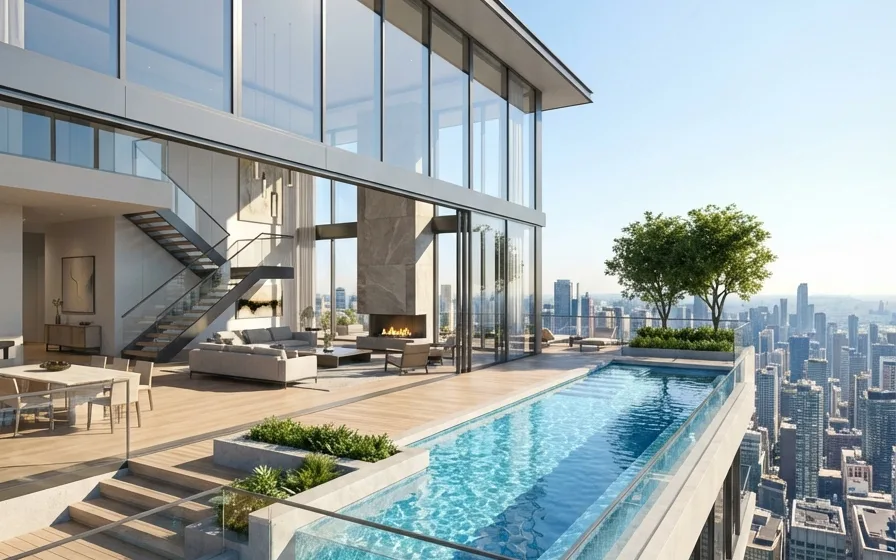
Revit to Render: Photorealistic Visuals Made Easy with SecondRender
Introduction: Your Revit Designs Deserve to Shine
Revit has long been the undisputed champion for architects, engineers, and construction professionals worldwide. Its unparalleled capabilities for parametric modeling, comprehensive documentation, and collaborative BIM workflows have revolutionized how buildings are designed and delivered. From initial conceptual sketches to detailed construction drawings, Revit empowers you to create intricate, data-rich models that form the backbone of any successful project.
However, the journey from a meticulously crafted Revit model to a compelling, photorealistic visual often presents a significant hurdle. While Revit excels at technical precision, many architects find themselves grappling with the complexities of its native rendering capabilities. The struggle is real: translating your detailed designs into stunning, lifelike images that captivate clients, secure approvals, and win bids can feel like an entirely different discipline. It's a common pain point – many don't know where to start, find the process too complex, or simply lack the time to dive deep into advanced rendering techniques.
You've poured your creativity and expertise into every line and component of your Revit model. Your designs deserve to be showcased in their best light, with visuals that truly reflect your vision and the quality of your work. This article is your guide. We'll explore the challenges of achieving high-quality Revit photorealistic rendering, demystify the core principles, and introduce you to a revolutionary solution that makes stunning visuals not just possible, but effortless. Get ready to transform your Revit models into masterpieces.
The Revit Rendering Challenge: Why Architects Struggle
The demand for high-quality architectural visualizations has never been greater. Clients expect to see their future spaces brought to life with stunning realism, long before ground is broken. Yet, for many architects, the path to achieving these visuals is fraught with obstacles.
Complexity of Native Revit Rendering
While Revit offers built-in rendering tools, mastering them for truly photorealistic results can be a steep climb. The interface, while powerful, can be intimidating for those not dedicated to rendering full-time. Architects often face:
- Steep Learning Curve: Understanding advanced settings for global illumination, ambient occlusion, and ray tracing requires significant time and experimentation.
- Material Libraries: While Revit has a material library, achieving realistic textures often means custom material creation, understanding PBR (Physically Based Rendering) workflows, and meticulous mapping.
- Lighting Setup: Replicating natural light conditions, setting up artificial lights, and balancing their intensities to create mood and realism is an art form in itself, demanding a deep understanding of lighting principles.
- Render Engine Nuances: The various settings within the rendering engine (like quality, resolution, and anti-aliasing) can drastically impact output, and finding the right balance for speed and quality is a constant challenge.
Time Investment vs. Project Deadlines
Time is an architect's most precious commodity. Project schedules are tight, deadlines are unforgiving, and every hour spent on non-design tasks is an hour lost. Achieving high-quality renders, especially with traditional methods, is notoriously time-consuming:
- Setup Time: Preparing a scene for rendering – assigning materials, setting up lights, defining camera views – can take hours, even days, for complex projects.
- Rendering Time: Once setup, the actual rendering process can tie up a workstation for hours, or even overnight, depending on the scene complexity, desired resolution, and quality settings. This often means sacrificing valuable design time or delaying other critical tasks.
- Iteration Delays: Client feedback often requires multiple rendering iterations. Each change, no matter how small, can necessitate re-rendering, further extending project timelines and increasing stress.
Hardware Demands
High-quality rendering is a computationally intensive task. It demands significant processing power, ample RAM, and often a powerful GPU. Standard architectural workstations, while capable of running Revit smoothly, may struggle to handle the demands of complex rendering scenes:
- CPU vs. GPU Rendering: Understanding the differences and optimizing settings for your specific hardware can be confusing.
- Memory Constraints: Large scenes with many detailed models, high-resolution textures, and complex lighting can quickly consume available RAM, leading to crashes or extremely slow render times.
- Upgrade Costs: Investing in top-tier rendering hardware can be a significant expense, often out of reach for smaller firms or individual practitioners.
Bridging the Skill Gap
Many architects are experts in design and documentation, but not necessarily in 3D visualization or graphic arts. The pain point of "not knowing how to use Revit" for rendering, or any other complex rendering software, is widespread. There's a clear skill gap between creating a detailed Revit model and producing a stunning visual. Architects are constantly searching for beginner-friendly solutions that can bridge this gap, allowing them to focus on their core design strengths rather than becoming rendering technicians. This is precisely where the need for streamlined, intuitive tools for Revit photorealistic rendering becomes apparent.
Beyond Basic Renders: The Need for Photorealism
In today's competitive architectural landscape, basic renders simply don't cut it. While a standard Revit render might convey spatial relationships and material choices, it often lacks the emotional impact and visual fidelity required to truly sell a design.
Why do standard Revit renders often fall short for client presentations and marketing materials? They can appear sterile, artificial, or lack the nuanced interplay of light and shadow that defines real-world spaces. The textures might look flat, the lighting unconvincing, and the overall impression less than inspiring.
The impact of photorealistic visuals, however, is transformative. They don't just show a building; they tell a story. They evoke emotion, create a sense of presence, and allow clients to truly envision themselves within the proposed space. This level of immersion leads to:
- Enhanced Client Perception: Photorealistic renders demonstrate a higher level of professionalism and attention to detail, instilling confidence in your clients.
- Faster Project Approvals: When clients can clearly see and feel the design, they are more likely to provide quick and decisive approvals, minimizing revisions and delays.
- Winning Bids: In a competitive pitch, a firm that presents stunning, lifelike visuals often has a significant advantage over those offering more rudimentary representations. Photorealism can be the deciding factor that secures a project.
- Effective Marketing: High-quality renders are invaluable assets for marketing your firm, showcasing your portfolio, and attracting new clients. They speak volumes about your capabilities and design philosophy.
It's crucial to differentiate between conceptual renders and marketing-grade photorealism. Conceptual renders are excellent for early-stage design exploration and internal reviews, focusing on massing, form, and basic material ideas. Marketing-grade photorealism, on the other hand, aims for an almost indistinguishable quality from a photograph, complete with intricate details, realistic lighting, and believable environments. Making the leap from basic Revit renders to true Revit photorealistic rendering is no longer a luxury, but a necessity for any architect aiming to stand out.
Essential Principles for Great Renders (Pre-Software)
Before diving into any rendering software, understanding the foundational principles of visual communication is paramount. A great render starts with a great model and a clear artistic vision. These principles apply universally, regardless of the tools you use.
Model Hygiene is Key
The quality of your render is directly tied to the quality of your 3D model. A clean, organized Revit model is not just good practice for documentation; it's absolutely essential for optimal rendering performance and quality.
- Clean Geometry: Avoid overlapping faces, inverted normals, and excessively complex geometry where simpler forms would suffice. These issues can lead to rendering artifacts, longer render times, and unpredictable results.
- Organized Elements: Use Revit's layering, grouping, and workset features effectively. This makes it easier to manage visibility, apply materials, and export specific parts of your model for rendering.
- Eliminate Unnecessary Detail: While Revit models are rich in data, not all of it is necessary for rendering. For instance, intricate structural connections or MEP systems might not need to be fully detailed if they won't be visible in the final render. Simplify or hide elements that won't contribute to the visual narrative.
- Correct Scale and Units: Ensure your model is built to real-world scale and consistent units. This is fundamental for accurate lighting calculations and material mapping.
Mastering Materials and Textures
Materials are the skin of your design, and their realism is crucial for convincing renders. Understanding Physically Based Rendering (PBR) principles is key.
- PBR Fundamentals: PBR materials simulate how light interacts with surfaces in the real world, using properties like albedo (base color), roughness (how diffuse or shiny a surface is), metallic (how metallic a surface is), normal maps (for surface detail), and displacement maps (for actual geometric detail).
- High-Resolution Textures: Use textures with appropriate resolution. Low-resolution textures will appear blurry or pixelated, instantly breaking the illusion of realism. Source high-quality textures from reputable libraries.
- Seamless Tiling: Ensure your textures tile seamlessly to avoid visible patterns or repetitions that detract from realism.
- Material Mapping: Correctly map textures onto your geometry using UV coordinates. This ensures textures are applied at the correct scale and orientation, preventing stretching or distortion.
- Variety and Imperfection: Real-world materials are rarely perfect. Incorporate subtle variations, smudges, or wear and tear (e.g., using grunge maps) to add depth and believability.
The Art of Lighting
Lighting is arguably the most critical element in rendering. It defines mood, highlights architectural features, and creates depth.
- Natural Lighting (Sun & Sky): Understand the impact of sun angle, time of day, and geographical location. Use sun studies to determine the best lighting conditions for your scene. Overcast skies create softer, more even lighting, while direct sunlight creates dramatic shadows and highlights.
- Artificial Lighting: For interiors, carefully plan the placement and type of artificial lights (spotlights, area lights, point lights). Consider their color temperature, intensity, and how they interact with surfaces.
- Global Illumination (GI): GI simulates how light bounces around a scene, illuminating indirect areas. It's essential for realistic ambient light and soft shadows.
- Shadows: Realistic shadows add depth and dimension. Pay attention to their softness, intensity, and how they define forms.
- Mood and Atmosphere: Lighting can dramatically alter the mood of a render. A warm, low sun can evoke coziness, while bright, even lighting suggests openness and clarity.
Composition and Camera Angles
Just like in photography, good composition guides the viewer's eye and tells a story.
- Rule of Thirds: Divide your image into a 3x3 grid and place key elements along the lines or at their intersections for a more balanced and engaging composition.
- Leading Lines: Use architectural elements (walls, pathways, rooflines) to create leading lines that draw the viewer's eye towards the focal point.
- Foreground, Midground, Background: Create depth by including elements at different distances from the camera.
- Eye-Level vs. Aerial: Consider the perspective. Eye-level shots convey a human experience, while aerial views provide context and showcase the overall design.
- Vignettes and Framing: Use elements within the scene (e.g., a tree branch, an archway) to frame your subject and add visual interest.
- Storytelling: Every render should tell a story. What feeling do you want to evoke? What aspect of the design do you want to highlight? Choose angles and compositions that support this narrative.
By mastering these pre-software principles, you lay a solid foundation for truly exceptional renders, making the subsequent software-based steps much more effective.
Streamlining Your Workflow: The SecondRender Advantage
The principles outlined above are crucial, but implementing them traditionally can still be a monumental task. This is where SecondRender steps in, fundamentally changing the game for architects seeking high-quality visualizations without the steep learning curve or time commitment.
Introducing SecondRender
SecondRender is an AI-powered architectural visualization platform designed to simplify the complex rendering process. It leverages cutting-edge artificial intelligence to transform your sketches and 3D models – including your detailed Revit files – into stunning photorealistic renders with unprecedented ease and speed. Our mission is to empower architects to focus on design, not on the technical intricacies of rendering.
Addressing Pain Points Directly
SecondRender was built with the architect's struggles in mind. It directly tackles the common pain points:
- "Struggling with rendering": Our intuitive interface and AI-driven suggestions eliminate the need for deep technical knowledge. The AI handles the heavy lifting, allowing you to achieve professional results without being a rendering expert.
- "Don't know how to use": You don't need to learn complex software settings, intricate material nodes, or advanced lighting techniques. SecondRender's AI intelligently interprets your model and applies best practices automatically.
- Time Constraints: The AI dramatically accelerates the entire workflow, from setup to final output.
- Hardware Demands: SecondRender is cloud-based, meaning you don't need expensive, high-end hardware. All the heavy computation happens on our powerful servers, freeing up your local machine.
Speed and Efficiency
One of SecondRender's most significant advantages is its speed. Traditional rendering can take hours, or even days, for a single high-resolution image. SecondRender's AI-powered engine slashes these times dramatically, often generating stunning renders in minutes. This frees up valuable design time, allowing you to:
- Iterate Faster: Quickly generate multiple render options for client feedback, exploring different material palettes, lighting scenarios, or camera angles without significant time investment.
- Meet Tight Deadlines: Deliver high-quality visuals on schedule, even with last-minute requests.
- Focus on Design: Reallocate hours previously spent waiting for renders back to the core creative process of architectural design.
Accessibility for All Skill Levels
SecondRender democratizes photorealistic rendering. Whether you're a seasoned architect with years of experience or a student just starting out, our platform makes high-quality visualization achievable. You don't need a background in 3D graphics or a degree in computer animation. The user-friendly interface and AI guidance mean that every architect, regardless of their prior rendering experience, can produce professional-grade visuals. This accessibility is key to making Revit photorealistic rendering a seamless part of every architect's workflow.
SecondRender in Action: From Revit Model to Masterpiece
Let's walk through how SecondRender transforms your Revit models into captivating photorealistic images, showcasing the simplicity and power of AI-driven visualization.
Seamless Integration
Getting your Revit model into SecondRender is designed to be straightforward. While Revit doesn't have a direct "export to SecondRender" button (yet!), we support common, robust export formats that maintain your model's integrity:
- Export Formats: You can easily export your Revit model to formats like FBX, OBJ, or even 3DS. These formats are widely supported and carry over geometry, basic material assignments, and sometimes even camera views.
- Future Plugins: We are continuously working on enhancing integration, including potential direct plugins for popular architectural software like Revit to make the process even more seamless in the future.
Once exported, simply upload your file to the SecondRender platform. Our system is optimized to quickly process these common architectural model formats.
AI-Powered Material & Lighting Suggestions
This is where SecondRender truly shines. Upon uploading your model, our AI goes to work:
- Intelligent Analysis: The AI analyzes your model's geometry, scale, and any basic material assignments you've made in Revit.
- Realistic Material Proposals: Based on its understanding of architectural contexts and PBR principles, SecondRender's AI intelligently proposes realistic materials. If you've assigned generic "concrete" or "wood" in Revit, the AI can suggest specific, high-quality PBR textures for various types of concrete or wood, complete with appropriate roughness and metallic values.
- Optimal Lighting Setups: The AI can suggest initial lighting setups based on common architectural scenarios (e.g., bright daylight, overcast, sunset, interior artificial lighting). It understands how light interacts with different surfaces and can create a balanced, natural-looking illumination for your scene.
These AI suggestions provide an excellent starting point, saving you countless hours of manual setup.
Intuitive Adjustments & Customization
While the AI provides a fantastic foundation, you always have full creative control. SecondRender's interface is designed for intuitive adjustments:
- Material Editor: Easily browse our extensive library of high-quality PBR materials. Drag and drop new textures, adjust parameters like color, roughness, and bump intensity with simple sliders. See changes in real-time. (coming soon)
- Lighting Controls: Fine-tune the sun's position, intensity, and color. Add or modify artificial lights with easy-to-use controls. Experiment with different environment presets (e.g., urban, forest, desert) to instantly change the mood.
- Camera Angles: Navigate your scene fluidly, set precise camera positions, adjust focal length, and apply depth of field effects to create compelling compositions. Our tools make it simple to apply the compositional principles discussed earlier. (coming soon)
One-Click Photorealism
Once you're happy with your adjustments, generating a stunning render is literally a one-click process. SecondRender's AI engine takes over, processing your scene with incredible speed and delivering a high-resolution, photorealistic image. There's no need to fiddle with complex render settings; the AI handles the optimization for you.
Key Features Highlight
Beyond the core workflow, SecondRender offers a suite of features to enhance your visualizations:
- Extensive Asset Libraries: Populate your scenes with high-quality 3D assets – furniture, vegetation, people, vehicles – to add realism and scale. (coming soon)
- Environment Presets: Instantly change the backdrop and overall lighting with a variety of pre-configured environments.
- Post-Processing Tools: Apply final touches like color grading, exposure adjustments, and vignettes directly within the platform, eliminating the need for external image editing software.
- Batch Rendering: Render multiple camera views or variations of your design simultaneously, further boosting efficiency. (coming soon)
- Cloud-Based Power: Enjoy the benefits of powerful, scalable rendering without local hardware limitations.
With SecondRender, the journey from a Revit model to a photorealistic masterpiece is no longer a daunting technical challenge, but an intuitive and enjoyable creative process.
Optimizing Your Revit Models for External Rendering
While SecondRender's AI is incredibly powerful, the quality of your input model significantly impacts the final render. By optimizing your Revit models before exporting, you can ensure a smoother workflow and even better results with any external rendering software.
Material Assignment Best Practices
How you assign materials in Revit directly affects how well they translate to rendering software.
- Consistent Naming: Use clear, descriptive names for your Revit materials (e.g., "Exterior Wall - Brick Red," "Interior Floor - Oak Parquet"). This makes it easier to identify and replace them with high-quality PBR materials in SecondRender.
- Unique Material IDs: Avoid using the same generic material for vastly different surfaces if you intend to apply unique textures later. For example, don't use "Default Wall" for both interior and exterior walls if they will have distinct finishes.
- Material Properties: While Revit's native material properties aren't as advanced as PBR, ensure you've assigned basic colors and textures that give a general idea of the surface. This helps the AI in SecondRender make more informed suggestions.
- Face-Specific Materials: For complex objects, ensure materials are assigned to the correct faces or elements. Incorrect assignments can lead to visual glitches or extra work in the rendering software.
Geometry Simplification
Revit models can become very heavy, especially with highly detailed families or imported CAD data. For rendering, it's often beneficial to simplify geometry without sacrificing visual integrity.
- Purge Unused Elements: Regularly use Revit's "Purge Unused" function to remove unnecessary families, materials, and other elements that bloat your file size.
- Simplify Complex Families: For elements like furniture or fixtures that are far from the camera, consider using simpler versions or proxies with fewer polygons. Highly detailed models are great for close-ups but overkill for distant objects.
- Remove Hidden Details: If a component is entirely hidden within a wall or behind another object, consider simplifying or removing its internal geometry.
- Use Detail Levels: Leverage Revit's detail levels (Coarse, Medium, Fine) to manage the complexity of elements. For rendering, you might export at a "Fine" level for key elements and a "Coarse" level for less important ones.
- Avoid Excessive Tessellation: When importing complex shapes (e.g., from Rhino or SketchUp), be mindful of tessellation settings. Too many polygons can drastically increase render times.
Layering and Grouping
An organized Revit model translates to an organized rendering scene, making management much easier.
- Worksets: Utilize Revit worksets to logically group elements (e.g., "Shell," "Interior Finishes," "Site Elements," "Furniture"). This allows you to easily control visibility and export specific parts of your model.
- Phasing: Use Revit's phasing tools to manage existing, new, and demolished elements. Only export the phases relevant to your render.
- Grouping: Group similar elements together within Revit. This can simplify scene selection and material application in SecondRender.
- Clear Hierarchy: Maintain a clear and logical hierarchy in your model structure. This is foundational for successful Revit photorealistic rendering.
Export Settings
When exporting from Revit, choosing the right format and settings is crucial for data integrity and quality.
- Recommended Formats: FBX is often the preferred format for exporting to external rendering applications due to its ability to carry over geometry, materials, and sometimes even camera information. OBJ is another reliable option, though it typically carries less material data.
- Units: Ensure your export units match the units you intend to use in SecondRender (or any other rendering software). Inconsistent units can lead to scaling issues.
- Geometry Detail: When exporting to FBX, you can often choose the level of detail for meshes. Select a balance that provides sufficient detail without creating unnecessarily heavy files.
- Material Export: Check the options to ensure materials are exported. While SecondRender's AI will enhance them, having basic material assignments from Revit provides a better starting point.
- Camera Export: If your chosen export format supports it, exporting Revit camera views can save time in setting up your initial perspectives in SecondRender.
By diligently applying these optimization techniques, you'll provide SecondRender with a clean, efficient, and well-structured model, setting the stage for truly spectacular photorealistic renders.
Common Rendering Pitfalls and How to Avoid Them
Even with powerful tools like SecondRender, understanding common rendering mistakes can help you elevate your visuals from good to outstanding. Avoiding these pitfalls ensures your Revit photorealistic rendering efforts yield the best possible results.
Poor Lighting Choices
Lighting is the soul of a render. Incorrect lighting can make even the best model look flat and unconvincing.
- Pitfall: Flat, even lighting with no shadows, or overly dramatic lighting that obscures details. Unrealistic color temperatures (e.g., too blue or too yellow).
- Avoidance:
- Study Real-World Lighting: Observe how light behaves in different environments and times of day.
- Balance Natural and Artificial: For interiors, ensure artificial lights complement natural light, rather than competing with it.
- Use HDRIs: High Dynamic Range Images (HDRIs) are excellent for providing realistic environmental lighting and reflections. SecondRender offers a range of HDRI environments.
- Experiment with Time of Day: Different sun angles create different moods. Don't settle for the default noon sun.
- Consider Light Color: Warm lights for cozy spaces, cooler lights for modern, crisp aesthetics.
Low-Resolution Textures
Nothing breaks the illusion of realism faster than blurry or pixelated textures.
- Pitfall: Using small, low-resolution images for large surfaces, resulting in a stretched, pixelated, or muddy appearance.
- Avoidance:
- High-Quality Sources: Always use high-resolution PBR textures from reputable libraries. SecondRender's library is curated with this in mind.
- Appropriate Scaling: Ensure textures are scaled correctly to the object's real-world dimensions. A brick texture should have individual bricks that are realistically sized.
- Seamless Tiling: Verify that textures tile without visible seams or repetitive patterns.
Unrealistic Materials
Generic or poorly scaled materials can make your design look artificial.
- Pitfall: Using default gray materials, materials with incorrect reflectivity (e.g., a matte wall that looks shiny), or materials with unrealistic bump/normal mapping.
- Avoidance:
- PBR Workflow: Understand and apply PBR principles. Focus on albedo, roughness, metallic, and normal maps.
- Reference Real Materials: Look at photos of real-world materials to understand their properties.
- Add Imperfection: Real materials have subtle imperfections. Use grunge maps, dust, or slight variations in roughness to add believability.
- Correct Scale: Ensure material patterns (like wood grain or tile grout) are scaled appropriately.
Bad Camera Angles & Composition
A technically perfect render can still fall flat if the composition is uninspired.
- Pitfall: Centered, static shots that lack dynamism; cluttered scenes; missing a clear focal point; or angles that don't highlight the design's best features.
- Avoidance:
- Apply Photography Principles: Use the rule of thirds, leading lines, and foreground elements to frame your shots.
- Tell a Story: Each render should convey a message or evoke an emotion.
- Vary Perspectives: Include eye-level shots for human scale, aerial views for context, and detail shots for specific features.
- Consider the Viewer's Eye: Guide the viewer's gaze through the scene.
- Clean Backgrounds: Ensure backgrounds are relevant and don't distract from the main subject.
Over-reliance on Default Settings
While SecondRender's AI provides excellent defaults, relying solely on them can lead to generic-looking renders.
- Pitfall: Every render looks similar because no customization was applied to materials, lighting, or environment.
- Avoidance:
- Personalize: Use the AI suggestions as a starting point, but always fine-tune to match your specific design intent and desired mood.
- Experiment: Don't be afraid to try different lighting scenarios, material combinations, and camera angles.
- Add Unique Assets: Populate your scene with unique furniture, plants, or decor that reflect the project's style.
- Post-Processing: Use SecondRender's built-in post-processing tools to add a final layer of polish and uniqueness to your images.
By being aware of these common pitfalls and actively working to avoid them, you'll consistently produce high-quality, impactful architectural visualizations that truly stand out.
The Future of Architectural Visualization: AI as Your Co-Pilot
The integration of Artificial Intelligence into architectural visualization is not just a trend; it's a fundamental shift that is reshaping how architects work and create. AI is rapidly becoming an indispensable co-pilot, augmenting human creativity and efficiency in ways previously unimaginable.
How AI is Democratizing High-Quality Rendering
Historically, achieving high-quality photorealistic renders required specialized skills, expensive software, and powerful hardware – a barrier to entry for many architects. AI is breaking down these barriers:
- Accessibility: Platforms like SecondRender make professional-grade rendering accessible to everyone, regardless of their technical expertise or budget. The complex algorithms and processes are handled by the AI, allowing architects to focus on their design vision.
- Speed: AI dramatically reduces rendering times, transforming a process that once took hours or days into minutes. This acceleration enables rapid iteration and faster decision-making.
- Consistency: AI can help maintain a consistent visual style across multiple renders, ensuring brand cohesion and project continuity.
- Automation: Repetitive tasks, such as material assignment, lighting setup, and scene optimization, are increasingly automated by AI, freeing up architects for more creative endeavors.
Shifting Focus from Technical Complexities to Creative Exploration
With AI handling the technical heavy lifting, architects can redirect their energy from wrestling with software settings to exploring design possibilities.
- Enhanced Creativity: Instead of spending hours on rendering logistics, architects can experiment with different material palettes, lighting moods, and environmental contexts with unprecedented ease. This fosters a more iterative and creative design process.
- Design Validation: AI-powered visualization allows for quick validation of design choices, helping architects understand the spatial qualities, material interactions, and lighting effects of their designs much earlier in the process.
- Storytelling: Architects can focus on crafting compelling visual narratives, using renders to communicate the emotional impact and functional benefits of their designs, rather than just their technical specifications.
The Role of AI in Accelerating Design Iterations and Client Feedback Loops
AI is not just about producing a final image; it's about accelerating the entire design cycle.
- Rapid Prototyping: Generate multiple visual options for a design concept in minutes, allowing for quick comparisons and informed decisions.
- Instant Feedback: Present clients with high-quality visuals almost instantly, facilitating immediate feedback and reducing the time spent on revisions.
- Predictive Visualization: Future AI advancements may even allow for predictive visualization, where AI can suggest design improvements based on desired aesthetic or functional outcomes.
The future of architectural visualization is one where AI acts as an intelligent assistant, empowering architects to bring their visions to life with unparalleled speed, quality, and creative freedom. It's about making the complex simple, and the impossible achievable.
Conclusion: Elevate Your Designs with SecondRender
You've journeyed from understanding the power of Revit for architectural design to confronting the common challenges of translating those designs into compelling, photorealistic visuals. We've explored the critical role of photorealism in client presentations and project approvals, delved into the essential pre-software principles for great renders, and highlighted the common pitfalls to avoid.
Throughout this journey, the message is clear: your Revit designs deserve to shine, and achieving stunning Revit photorealistic rendering doesn't have to be a complex, time-consuming ordeal. SecondRender stands as a testament to this, offering an AI-powered solution that redefines architectural visualization.
SecondRender's value proposition is simple yet profound: ease, speed, quality, and accessibility. It empowers architects to bypass the steep learning curves and hardware demands of traditional rendering, transforming hours of work into minutes. By leveraging artificial intelligence, SecondRender ensures that every architect, regardless of their rendering experience, can produce professional-grade visuals that captivate and convince.
It's time to move beyond basic renders and empower your architectural visions with unparalleled clarity and impact. Showcase your designs exactly as you envision them, with the realism and emotional resonance they deserve.
Ready to transform your Revit models? Try SecondRender today and bring your designs to life!