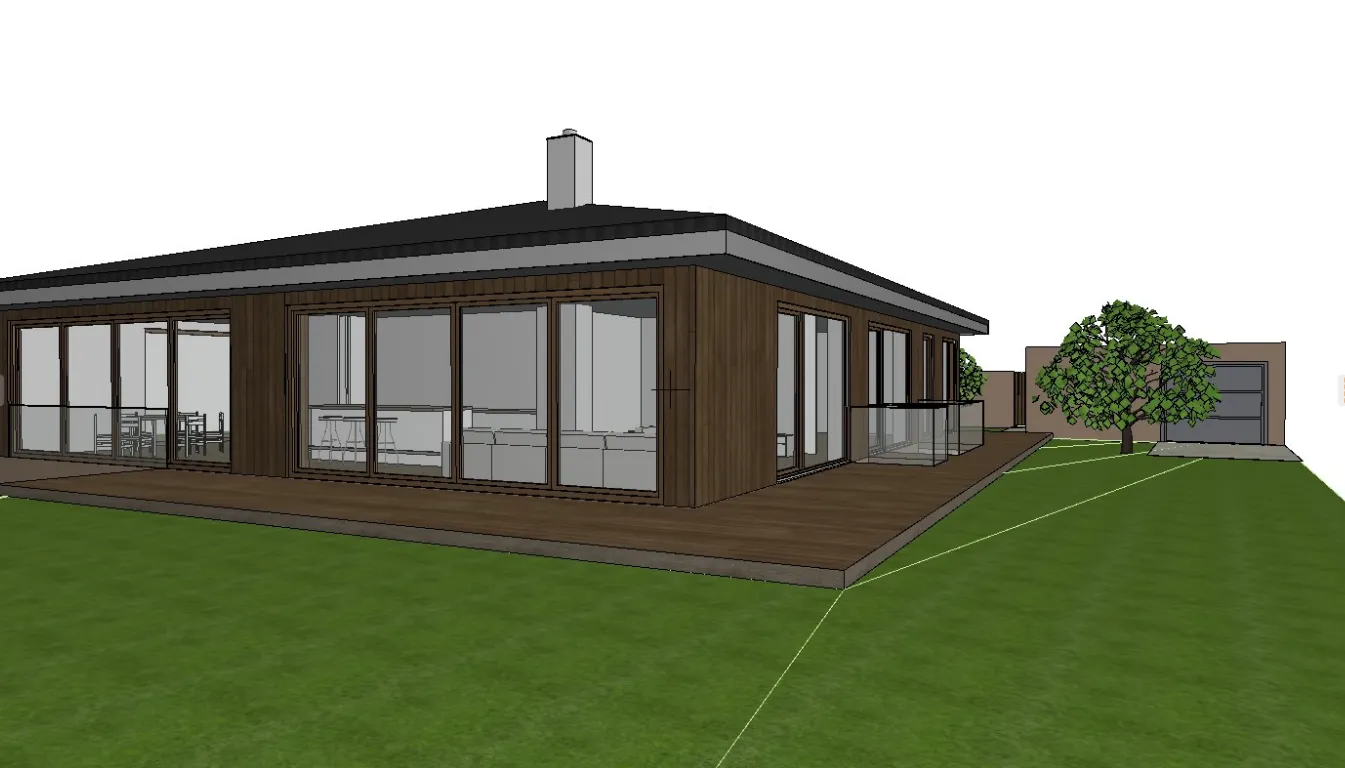
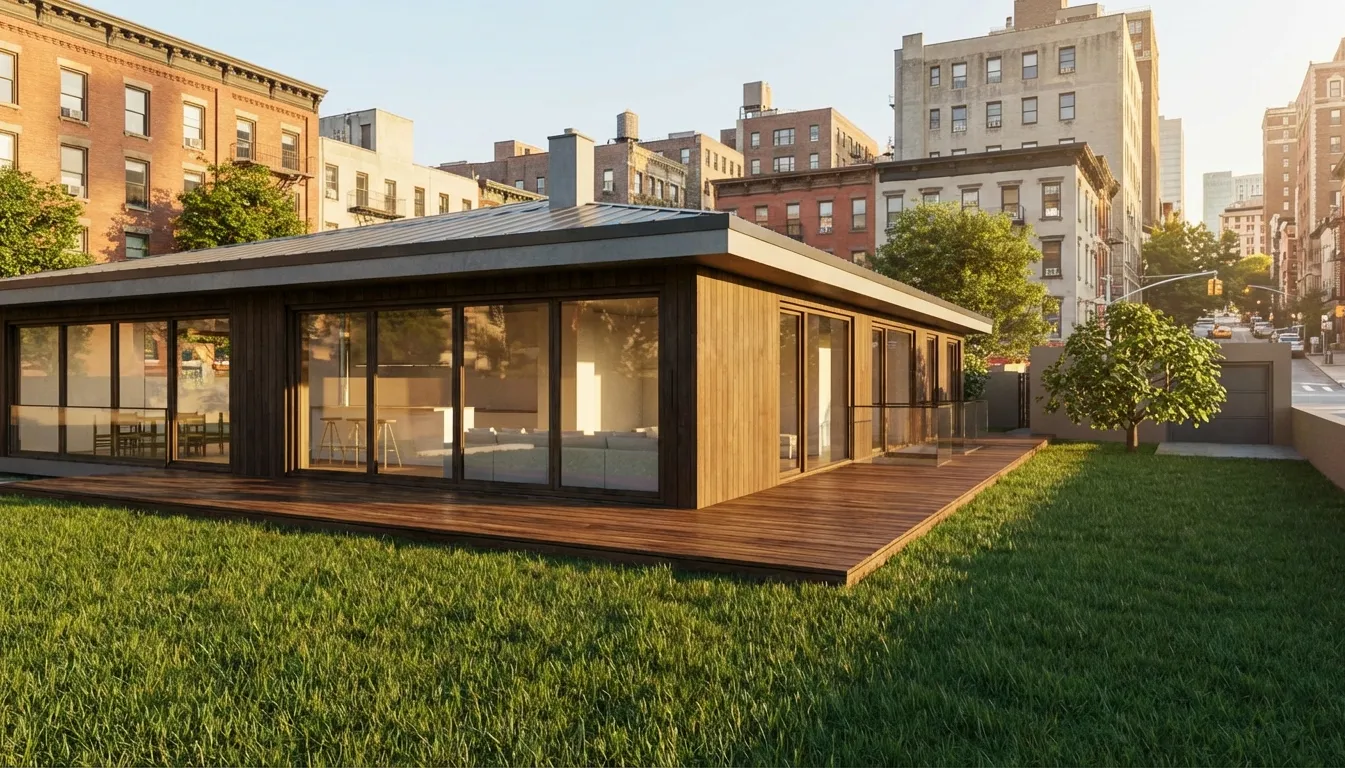
Elevate Your SketchUp Renders: Achieve Studio-Quality Visuals with AI
Introduction: Bridging the Gap Between SketchUp & Studio-Quality Renders
SketchUp has long been an indispensable tool in the architectural design workflow. Its intuitive interface and powerful 3D modeling capabilities make it a favorite for conceptualization, schematic design, and even detailed documentation. Architects worldwide rely on SketchUp to quickly translate ideas into tangible 3D forms, iterate on designs, and communicate spatial relationships with clarity.
However, a common challenge arises when it's time to move beyond the conceptual stage: translating those raw SketchUp models into compelling, photorealistic visuals that truly impress clients and convey the emotional impact of a design. While SketchUp excels at modeling, achieving high-fidelity, studio-quality renders often feels like a separate, daunting discipline.
Traditionally, this leap requires architects to venture into complex rendering workflows. This often involves exporting models to specialized rendering engines like V-Ray, Enscape, or Lumion, each with its own steep learning curve for mastering intricate settings related to lighting, materials, cameras, and post-processing. The process can be incredibly time-consuming, demanding specialized expertise that many architects simply don't have the luxury to acquire or maintain. The result is often a compromise between visual quality and project deadlines, or the outsourcing of rendering work, adding to project costs.
But what if there was a way to bridge this gap? What if you could leverage the power of your SketchUp models and elevate them to stunning, photorealistic renders with unprecedented ease and speed? This article will delve into the fundamentals of creating render-ready SketchUp models and then reveal how AI-powered tools are revolutionizing the rendering process, making studio-quality architectural visualizations accessible to every SketchUp user.
Laying the Groundwork: Optimizing Your SketchUp Model for Rendering Success
Before you even think about rendering, the quality of your SketchUp model is paramount. A well-organized, clean model is the foundation for any successful render, regardless of the rendering engine you use. Neglecting these steps can lead to frustrating issues like slow render times, visual glitches, and difficulty applying materials realistically.
Clean Geometry & Efficient Modeling
The cleaner your geometry, the better your render will look and perform.
- Purge Unused Items: SketchUp models can quickly accumulate unused components, materials, and styles, bloating file size and slowing performance. Regularly go to
Window > Model Info > Statistics > Purge Unusedto clean up your model. - Avoid Excessive Detail Where Unnecessary: While detail is good, don't model every single screw head or tiny fillet if it won't be visible in your final render. Use textures with normal maps for fine details rather than complex geometry. Simplify curves and arcs where possible.
- Group and Component Wisely: Grouping similar elements and creating components for repetitive objects (windows, doors, furniture) not only keeps your model organized but also makes it easier to manage materials and make changes. Components are especially efficient as SketchUp only stores their definition once, regardless of how many instances you have.
- Orient Faces Correctly: Ensure all faces are oriented with their white (front) side facing outwards. Back faces (often blue or grey) can cause issues with lighting and material application in rendering engines. You can right-click on a face and select
Reverse Facesto correct them.
Layer Organization & Component Management
A structured SketchUp scene is crucial for clarity and ease of rendering, especially for complex projects.
- Use Layers (Tags in newer SketchUp versions) Systematically: Assign different elements to appropriate layers (ee.g., "Walls_Exterior," "Walls_Interior," "Furniture," "Landscape," "Glass"). This allows you to easily toggle visibility, isolate parts of your model, and manage rendering elements. For instance, you might hide interior furniture for an exterior render to speed up processing.
- Nested Components and Groups: Organize your components and groups hierarchically. For example, a "Window" component might contain sub-components for "Frame," "Glass," and "Sill." This makes it easier to apply specific materials to different parts of an object.
- Naming Conventions: Adopt clear and consistent naming conventions for your layers, groups, and components (e.g.,
_WALL_EXT_BRICK,_FURN_SOFA_LIVING). This saves immense time when navigating complex models.
Understanding Model Scale & Units
Accurate dimensions are fundamental for realistic material application, lighting, and overall believability.
- Work in Real-World Scale: Always model in real-world dimensions. This is critical for rendering engines to correctly interpret material properties (like how light interacts with a surface) and for accurate lighting calculations.
- Consistent Units: Ensure your SketchUp model units (e.g., meters, feet, millimeters) are consistent with the units expected by your rendering software. Mismatched units can lead to materials appearing too large or too small, or lighting being incorrectly scaled. You can check and adjust your model units in
Window > Model Info > Units.
The Importance of Proper UV Mapping
UV mapping is the process of defining how a 2D texture image wraps around a 3D object. Proper UV mapping is essential for high-quality textures and avoiding stretching or distortion.
- Default SketchUp Mapping: SketchUp's default material application often uses "projected" mapping or simple planar mapping. While this is fine for basic conceptual work, it can lead to stretching on complex geometries or around corners.
- Texture Positioning Tool: Use SketchUp's
Position Texturetool (right-click on a textured face) to adjust the scale, rotation, and position of your textures. This is crucial for ensuring textures like brick or wood grain appear at the correct real-world scale. - Exploding and Re-grouping: Sometimes, exploding a group or component, applying materials to individual faces, and then re-grouping can help SketchUp apply textures more accurately.
- Consider Third-Party UV Tools: For highly complex or organic shapes, dedicated UV mapping tools (often found in more advanced 3D modeling software) might be necessary, though for most architectural SketchUp models, careful application within SketchUp is sufficient. AI rendering platforms, like SecondRender, can often intelligently interpret and correct minor UV mapping issues, but starting with a good base is always best.
By meticulously preparing your SketchUp model, you lay a robust foundation that will save you countless hours during the rendering phase and ensure your final SketchUp photorealistic renders achieve their full potential.
The Art of Light & Material: Elevating Realism in Any Render
Once your SketchUp model is optimized, the next critical step in achieving photorealism lies in mastering light and materials. These two elements are intrinsically linked and dictate how your design is perceived.
Lighting Fundamentals
Lighting is the soul of any render. It defines mood, highlights architectural features, and provides crucial depth and realism.
- Natural Light Sources (Sun & Sky):
- Sunlight: Mimics the sun's direct illumination, creating sharp shadows and defining forms. In SketchUp, you can adjust the time of day and year to simulate different sun angles and intensities. Pay attention to how shadows fall – they add immense depth and help ground your building in its environment.
- Sky/Ambient Light: Provides soft, diffuse illumination, filling in shadows and contributing to the overall brightness. This is often simulated using a "sky dome" or Global Illumination (GI) techniques.
- Artificial Light Sources:
- Point Lights: Emit light in all directions from a single point (e.g., a bare bulb).
- Spot Lights: Emit a cone of light in a specific direction (e.g., downlights, stage lights).
- Area Lights: Emit light from a surface, creating softer, more even illumination (e.g., fluorescent panels, large windows acting as light sources).
- IES Profiles: For advanced realism, IES (Illuminating Engineering Society) profiles can be used with artificial lights. These are photometric data files that accurately describe the light distribution pattern of real-world light fixtures.
- Global Illumination (GI): This advanced rendering technique simulates how light bounces off surfaces and illuminates other surfaces indirectly. It's crucial for realistic interior renders, where light often bounces multiple times before reaching the viewer's eye, creating soft, natural illumination.
- Realistic Shadow Casting: Shadows are as important as light. They define form, depth, and scale. Ensure shadows are soft where appropriate (e.g., from ambient light) and sharp where direct light hits. The color of shadows should also subtly reflect the environment.
Material Mastery: Introduction to Physically Based Rendering (PBR) Principles
PBR is a modern approach to material creation that aims to simulate how light interacts with surfaces in a physically accurate way. This results in much more realistic and consistent materials across different lighting conditions.
- Essential Texture Maps: PBR materials typically use several texture maps to define their properties:
- Albedo/Diffuse Map: The base color of the surface, without any lighting information. This is the primary color you see.
- Normal Map: Adds fine surface detail (bumps, grooves) without adding actual geometry. It fakes surface imperfections by manipulating how light reflects off the surface.
- Roughness Map: Defines how rough or smooth a surface is. Rougher surfaces scatter light more diffusely, while smoother surfaces reflect light more sharply (like a mirror).
- Metallic Map: Indicates whether a surface is a metal or a dielectric (non-metal). Metals behave differently with light, absorbing diffuse light and reflecting specular light.
- Displacement Map (or Height Map): Actually displaces the geometry of the surface, creating real bumps and indents. This is more computationally intensive than normal maps but provides true 3D detail.
- Ambient Occlusion Map: Provides pre-calculated shadow information in crevices and corners, enhancing depth and realism.
- Achieving Realistic Reflections, Refractions, and Translucency:
- Reflections: Controlled by the roughness and metallic maps. Highly reflective surfaces (polished metal, glass) require accurate environment reflections (often from HDRI maps) to look convincing.
- Refractions: How light bends as it passes through transparent materials like glass or water. The Index of Refraction (IOR) value is critical here.
- Translucency/Subsurface Scattering (SSS): How light penetrates a surface, scatters internally, and then exits. This is important for materials like marble, wax, skin, or thin fabrics, giving them a soft, luminous quality.
Mastering these lighting and material principles is key to transforming your SketchUp models into truly captivating and believable SketchUp photorealistic renders. It's a blend of technical understanding and artistic sensibility that, when combined, brings your architectural visions to life.
Composition & Environment: Crafting a Compelling Visual Narrative
Beyond technical accuracy, a great render tells a story. Composition and the surrounding environment are crucial for creating impactful images that resonate with viewers and effectively communicate your design intent.
Principles of Architectural Composition
Just like in photography, good composition guides the viewer's eye and enhances the aesthetic appeal of your render.
- The Rule of Thirds: Divide your image into nine equal parts with two horizontal and two vertical lines. Place key elements of your design along these lines or at their intersections for a more balanced and engaging composition. Avoid placing your subject dead center unless for a specific stylistic choice.
- Leading Lines: Use architectural elements like walls, pathways, railings, or even shadows to create lines that draw the viewer's eye towards the main subject or a focal point.
- Depth of Field (DOF): Simulate the way a camera lens focuses. By blurring the foreground and/or background, you can direct attention to your primary subject and add a sense of realism and artistic flair. A shallow DOF can create a more intimate feel, while a deeper DOF shows more context.
- Framing: Use elements within your scene (e.g., a doorway, trees, an archway) to frame your building or a specific architectural detail. This adds depth and draws the eye to the framed subject.
- Balance and Symmetry: Consider the visual weight of elements in your scene. While perfect symmetry can be striking, asymmetrical balance often feels more dynamic and natural.
- Negative Space: The empty space around and between objects. It's just as important as the positive space (your subject) in defining the composition and preventing clutter.
Integrating Models into Realistic Environments
A building doesn't exist in a vacuum. Its surroundings are vital for context and believability.
- Leveraging HDRI Backgrounds: High Dynamic Range Images (HDRIs) are panoramic images that capture a full range of light information from a real-world location. They are incredibly powerful for providing realistic sky, ambient lighting, and reflections in your renders. A good HDRI can instantly elevate the realism of your scene by providing natural lighting and a convincing backdrop.
- Context Models: Incorporate surrounding buildings, roads, sidewalks, and landscape elements. Even simple massing models of adjacent structures can significantly enhance the sense of place and scale.
- Surrounding Elements: Don't forget the details that bring a scene to life:
- Vegetation: Trees, shrubs, grass, and flowers add natural beauty, scale, and help integrate the building into its site. Use diverse species and vary their scale and distribution.
- People and Vehicles: Adding scale figures and vehicles provides a sense of human activity, scale, and context. Ensure they are appropriate for the scene's mood and location.
- Street Furniture: Benches, lampposts, trash cans, and signage further ground your design in a realistic urban or suburban setting.
- Weather Effects: Consider adding subtle rain, fog, or snow for dramatic effect and to convey a specific mood or season.
The Psychological Impact of Context and Environment
The environment profoundly influences how a design is perceived. A brutalist building might feel harsh in a lush, natural setting but perfectly at home in an industrial urban landscape. A cozy cottage needs a warm, inviting landscape. By carefully crafting the environment, you can:
- Enhance Emotional Connection: Evoke feelings of tranquility, grandeur, excitement, or comfort.
- Communicate Function: Show how the building interacts with its surroundings and serves its purpose.
- Reinforce Design Intent: Highlight specific architectural features or material choices by contrasting them with the environment.
Thoughtful composition and a rich, believable environment are the final brushstrokes that transform a technically accurate render into a captivating visual narrative, making your SketchUp photorealistic renders truly stand out.
The Bottlenecks of Traditional Rendering Workflows for SketchUp Users
While the principles of good rendering are timeless, the traditional methods of achieving them often present significant hurdles for architects using SketchUp. These bottlenecks can stifle creativity, delay projects, and ultimately impact client satisfaction.
Steep Learning Curves
The most immediate challenge is the sheer complexity of dedicated rendering engines. Software like V-Ray, Enscape, Lumion, or D5 Render, while powerful, each comes with its own intricate interface, terminology, and workflow.
- Extensive Settings: Users must grapple with countless parameters for materials (reflectivity, refraction, translucency, bump, displacement), lighting (intensity, color temperature, falloff, IES profiles), cameras (f-stop, shutter speed, ISO, depth of field), and render settings (sampling, global illumination algorithms, denoisers).
- Specialized Knowledge: Mastering these engines often requires dedicated training, tutorials, and significant practice. Architects, whose primary expertise lies in design, often find this a steep and time-consuming diversion from their core responsibilities.
- Software Integration: Learning how to effectively export SketchUp models and maintain data integrity across different software platforms adds another layer of complexity.
Long Render Times & Iterative Feedback
The process of generating high-quality renders is notoriously time-consuming, leading to frustration and delays.
- Hours, Not Minutes: Even with powerful hardware, complex scenes with detailed geometry, multiple light sources, and advanced material properties can take hours, or even days, to render a single high-resolution image.
- Slow Iteration: This lengthy process severely hampers iterative design. If a client requests a minor material change or a slight adjustment to the lighting, generating a new render for feedback can mean another long wait. This slows down decision-making and extends project timelines.
- Cost of Hardware: To mitigate long render times, architects often need to invest in expensive, high-end workstations with powerful GPUs and ample RAM, adding a significant capital expenditure.
Difficulty Achieving Consistent High-Quality Results
Without extensive rendering expertise, consistently producing professional, studio-quality visuals is a significant challenge.
- Inconsistent Output: Different projects or even different renders within the same project can vary wildly in quality if the user lacks a deep understanding of rendering principles and software nuances.
- Lack of Artistic Eye: Beyond technical settings, achieving a truly compelling render requires an artistic eye for composition, color, and mood – skills that are developed over time and often require dedicated focus.
- Reliance on Presets: While presets exist, they often don't perfectly match a specific design's unique needs, requiring manual adjustments that can be daunting for novices. The result is often renders that look "good enough" but lack the polish and impact of truly professional work.
The Desire for Efficiency Without Compromising on Visual Fidelity
Ultimately, architects want to spend more time designing and less time wrestling with rendering software. The traditional workflow forces a trade-off: either invest heavily in learning complex tools and enduring long render times, or compromise on the visual quality of their presentations. This creates a clear demand for a solution that offers both efficiency and uncompromising visual fidelity, especially for those aiming for top-tier SketchUp photorealistic renders.
Introducing SecondRender: AI-Powered Photorealism for Your SketchUp Projects
Imagine a world where the bottlenecks of traditional rendering simply vanish. Where your SketchUp models, brimming with design intent, can be instantly transformed into breathtaking, photorealistic visualizations without the steep learning curves or agonizing wait times. This is the promise of SecondRender.
SecondRender leverages advanced Artificial Intelligence to fundamentally simplify and accelerate the architectural rendering process. We've engineered our platform to understand the nuances of architectural design, material science, and lighting physics, allowing the AI to handle the complex technicalities that traditionally consume hours of an architect's time.
The magic begins with seamless integration. SecondRender is designed to directly transform your SketchUp models into stunning visuals with minimal setup. You don't need to be a rendering expert; you just need your SketchUp model. Our AI interprets your geometry, intelligently suggests appropriate materials, sets up dynamic lighting, and composes compelling shots, all with an intuitive, user-friendly interface.
The key benefits are transformative:
- Unprecedented Speed: Generate high-quality renders in minutes, not hours or days. This accelerates your design iterations and client feedback loops dramatically.
- Effortless Ease of Use: Say goodbye to complex settings and endless sliders. SecondRender's AI automates the most challenging aspects of rendering, allowing you to focus on your design.
- Consistent High-Quality Output: Our AI is trained on vast datasets of professional architectural visualizations, ensuring that every render you produce meets a consistent, studio-quality standard, regardless of your personal rendering expertise.
- Enhanced Creative Freedom: With the technical burden lifted, you're free to experiment with different design options, material palettes, and lighting scenarios, exploring your creative vision without limitations.
SecondRender isn't just another rendering tool; it's a paradigm shift. It bridges the gap between your SketchUp design and a professional, client-ready render, empowering you to present your architectural visions with unparalleled clarity and impact. It's the ultimate tool for achieving truly exceptional SketchUp photorealistic renders.
SecondRender in Action: A Workflow for Unparalleled Visuals
Let's walk through a typical workflow with SecondRender and see how our AI-powered platform turns your SketchUp models into stunning visualizations with remarkable efficiency.
Effortless Model Import
The first step is always the easiest. SecondRender understands SketchUp. You can directly import your .skp files into the platform. Our system is optimized to handle your SketchUp geometry, layers, and basic material assignments, ensuring a smooth transition from your modeling environment to our rendering engine. There's no need for complex export settings or intermediate file formats; simply bring your SketchUp model as it is.
AI-Driven Material Application
This is where SecondRender truly shines in simplifying a traditionally complex task.
- Intelligent Material Suggestions: Based on the geometry and context of your SketchUp model, SecondRender's AI can intelligently suggest appropriate PBR materials. For example, it will recognize a wall surface and offer a range of realistic brick, concrete, or plaster options, complete with diffuse, normal, roughness, and displacement maps.
- Intuitive Customization: While the AI provides excellent starting points, you retain full creative control. Our intuitive interface allows you to easily browse extensive material libraries, tweak properties like color, reflectivity, and texture scale, or even upload your own custom PBR texture sets. The AI assists, but you always guide the final aesthetic.
- Consistent Realism: The AI ensures that all applied materials adhere to PBR principles, guaranteeing that they interact with light in a physically accurate way, resulting in consistent and believable realism across your entire scene.
Intelligent Lighting Setups
Lighting is often the most challenging aspect of rendering, but SecondRender's AI makes it effortless.
- Automatic Environment Generation: Based on your chosen location and time of day, the AI automatically generates dynamic and realistic lighting setups. It intelligently places a sun, sky, and ambient light sources, complete with accurate shadows and global illumination.
- Contextual Lighting: The AI can even interpret the context of your scene (e.g., an urban setting vs. a natural landscape) and adjust the lighting to enhance believability.
- Easy Adjustments: Need a sunset render? Or a bright, midday shot? Simply adjust a slider for time of day or choose from a range of pre-defined lighting moods (e.g., overcast, clear sky, twilight), and the AI instantly reconfigures the entire lighting environment. You can also fine-tune individual light sources if desired.
One-Click Photorealism
Once your model is imported, materials are applied, and lighting is set, generating your final render is incredibly simple.
- High-Resolution Output: With just a click, SecondRender's powerful AI rendering engine processes your scene, applying advanced algorithms for global illumination, reflections, refractions, and anti-aliasing.
- Minimal Manual Adjustments: The AI handles the heavy lifting, meaning you spend less time tweaking obscure settings and more time focusing on your design. The result is stunning, high-resolution SketchUp photorealistic renders that are ready for client presentations or portfolio use, often generated in a fraction of the time compared to traditional methods.
- Rapid Iteration: The speed of SecondRender means you can generate multiple variations of a render (different camera angles, lighting, materials) in minutes, allowing for rapid design exploration and client feedback without the usual delays.
This streamlined workflow empowers architects to achieve unparalleled visual quality from their SketchUp projects, transforming a once arduous task into an efficient and enjoyable part of the design process.
Beyond the Basics: Advanced Features & Creative Control with SecondRender
While SecondRender excels at automating the complex, it also provides architects with sophisticated tools to fine-tune their vision and explore creative possibilities far beyond basic rendering. Our platform is designed to be both powerful and intuitive, offering control where it matters most.
Fine-Tuning AI Suggestions: Guiding Your Artistic Vision
SecondRender's AI is intelligent, but it's also designed to be guided by your artistic intent.
- Material Overrides: While the AI suggests materials, you always have the final say. Easily swap out an AI-suggested brick for a specific type of stone, adjust its color tint, or modify its roughness and metallic properties to perfectly match your design specifications.
- Custom Lighting Placement: The AI provides excellent default lighting, but you can add and position your own artificial lights (point, spot, area lights) with precise control over intensity, color, and falloff. This is crucial for highlighting specific architectural details or creating dramatic interior scenes.
- Camera Control: Beyond simple camera angles, SecondRender offers advanced camera controls akin to a professional DSLR. Adjust focal length, depth of field, exposure, and white balance to achieve the exact photographic look you envision. The AI helps set up a good default, but you can always take the reins for that perfect shot.
- Post-Processing Effects: Enhance your renders with built-in post-processing tools. Adjust contrast, saturation, sharpness, add vignettes, or apply color grading to achieve a specific mood or style, all within the SecondRender platform.
Exploring Different Styles and Moods: Rapidly Generating Variations
One of the most powerful advantages of AI-powered rendering is the ability to rapidly generate variations, which is invaluable for client presentations and design exploration.
- Day/Night Cycles: Instantly switch between a bright, sunlit daytime render and a dramatic, artificially lit nighttime scene. The AI intelligently reconfigures all light sources and environment settings to reflect the chosen time of day.
- Seasonal Variations: See how your design looks in different seasons. Imagine your building surrounded by lush summer foliage, vibrant autumn colors, or a serene winter landscape, all generated with a few clicks.
- Material Palettes: Experiment with different material schemes without re-rendering from scratch. Quickly swap out an exterior cladding from brick to wood, or change interior finishes from concrete to polished stone, and see the immediate visual impact. This allows for rapid A/B testing of design choices.
- Atmospheric Effects: Add subtle fog, haze, or volumetric lighting to create specific atmospheric moods, from a crisp morning to a misty evening.
Iterative Design with Rapid Feedback: The Power of Quick Renders
The speed of SecondRender fundamentally changes the design iteration process.
- Real-time Design Exploration: Generate quick preview renders as you make design changes in SketchUp. This allows you to evaluate the visual impact of modifications almost instantly, fostering a more fluid and intuitive design workflow.
- Client Collaboration: Present multiple options to clients in a single meeting. Instead of saying "I'll get back to you with that render next week," you can show them variations on the spot, facilitating faster decision-making and a more collaborative design process.
- Reduced Risk: By visualizing design choices quickly and accurately, you reduce the risk of costly changes later in the project lifecycle, ensuring that the final build aligns perfectly with the client's vision.
SecondRender empowers architects to go beyond simply creating SketchUp photorealistic renders; it enables them to explore, refine, and present their designs with unprecedented creative freedom and efficiency.
The Future is Now: Why AI is Essential for Modern Architectural Visualization
The architectural industry is constantly evolving, driven by technological advancements that demand greater efficiency, precision, and visual impact. In this landscape, Artificial Intelligence is not just a trend; it's becoming an essential tool for modern architectural visualization.
Staying Competitive: Producing Superior Visuals Faster
In today's competitive market, the quality and speed of your presentations can make or break a project. Clients expect not just good designs, but compelling visual narratives that bring those designs to life.
- Higher Quality, Lower Effort: AI-powered platforms like SecondRender allow architects to consistently produce superior, studio-quality visuals without needing to become rendering specialists. This means your firm can compete with larger studios that have dedicated visualization teams, all while maintaining a lean and agile workflow.
- Faster Turnaround: The ability to generate stunning renders in minutes or hours, rather than days, means you can respond to client requests faster, meet tighter deadlines, and take on more projects without compromising quality. This agility is a significant competitive advantage.
Freeing Up Design Time: Shifting Focus Back to Core Architectural Design
One of the most profound impacts of AI in visualization is its ability to free architects from the technical complexities of rendering.
- Focus on Creativity: Instead of spending hours tweaking material settings or debugging lighting issues, architects can reallocate that valuable time to what they do best: designing, innovating, and solving complex spatial problems.
- Enhanced Design Exploration: With rapid rendering capabilities, architects can explore more design options, test different material palettes, and experiment with various lighting scenarios, leading to more refined and thoughtful architectural solutions. The visualization process becomes an integral part of design exploration, rather than a post-design chore.
Democratizing Access to High-End Visualization: Making Studio-Quality Renders Accessible to Every Architect
Historically, achieving truly high-end, SketchUp photorealistic renders required significant investment in specialized software, powerful hardware, and extensive training. This often created a barrier for smaller firms, independent architects, or those just starting their careers.
- Leveling the Playing Field: AI visualization tools democratize access to professional-grade rendering. They lower the technical barrier to entry, allowing any architect, regardless of their rendering expertise or budget for a dedicated visualization team, to produce stunning visuals.
- Empowering Creativity: By simplifying the visualization process, AI empowers architects to fully express their creative vision, ensuring that their designs are presented in the best possible light, accurately conveying their intent and impact.
The integration of AI into architectural visualization, exemplified by platforms like SecondRender, is not just about making renders faster or easier. It's about empowering architects to design better, communicate more effectively, and ultimately, shape the built environment with greater impact. The future of architectural visualization is here, and it's intelligent, efficient, and accessible.
Conclusion: Elevate Your SketchUp Renders Today with SecondRender
We've journeyed from the foundational principles of optimizing your SketchUp model to mastering the art of light, material, and composition, and finally, to understanding how AI is revolutionizing the entire architectural visualization landscape. The path to breathtaking, SketchUp photorealistic renders no longer needs to be fraught with steep learning curves, agonizing render times, or inconsistent results.
SecondRender stands at the forefront of this revolution, offering a unique value proposition: unparalleled speed, consistent studio-quality output, and remarkable simplicity for architectural visualization. We empower you to transform your SketchUp designs into stunning, client-ready visuals, allowing you to focus on your core passion: design.
Ready to transform your SketchUp designs into unparalleled photorealistic results? Ready to experience the power of AI-driven rendering that saves you time, enhances your creativity, and elevates your presentations? Explore SecondRender and elevate your architectural visualizations. Get started with SecondRender today and bring your SketchUp models to life like never before!